
https://siderite.dev/blog/lichess-tools---user-manual/#profilePuzzleTab
A better way to visualize puzzles and improve
... another LiChess Tools browser extension feature
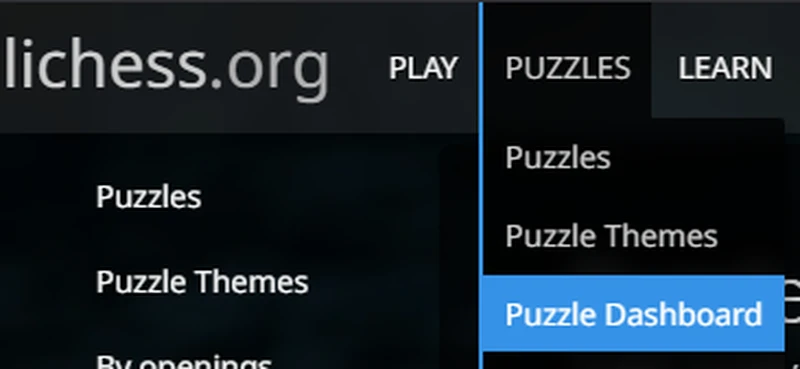
Update 21th of December, 2024: Lichess has removed the puzzle performance page I was using for this, therefore the functionality described below is now integrated in the Puzzle Dashboard. The slider functionality is no longer available, but you can use the dropdown filter to select the number of days to display.
Original post:
In this post I will present a new puzzle related feature in LiChess Tools: a page that will show you the rating progress of your puzzles in time, as well as show you in detail which themes you did better in and how to improve in each one specifically.
The feature is enabled by default, you can change that in the Puzzle performance chart in Profile preference
To find the page you can either go in your Profile and go to the first Puzzles link on the left or go to Puzzle Stats in the Puzzle menu: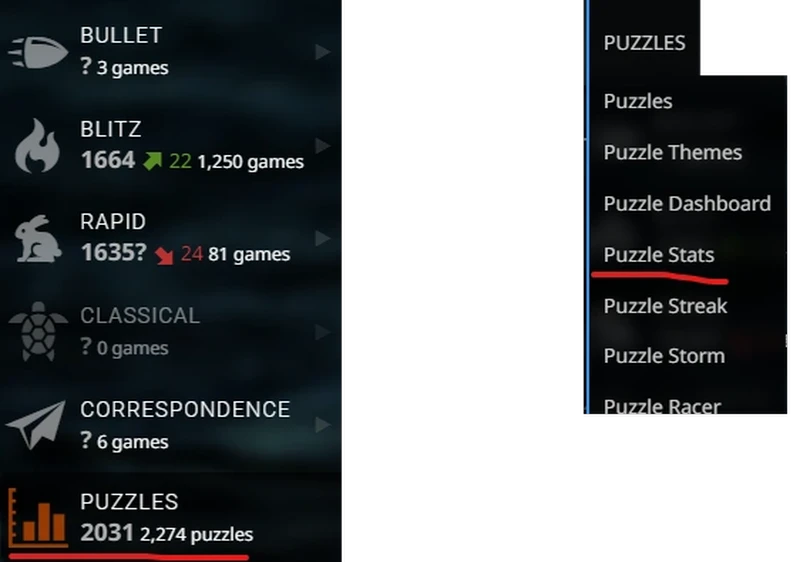
Once there you will get a page with the two elements I described at the start: a time slider and a details table: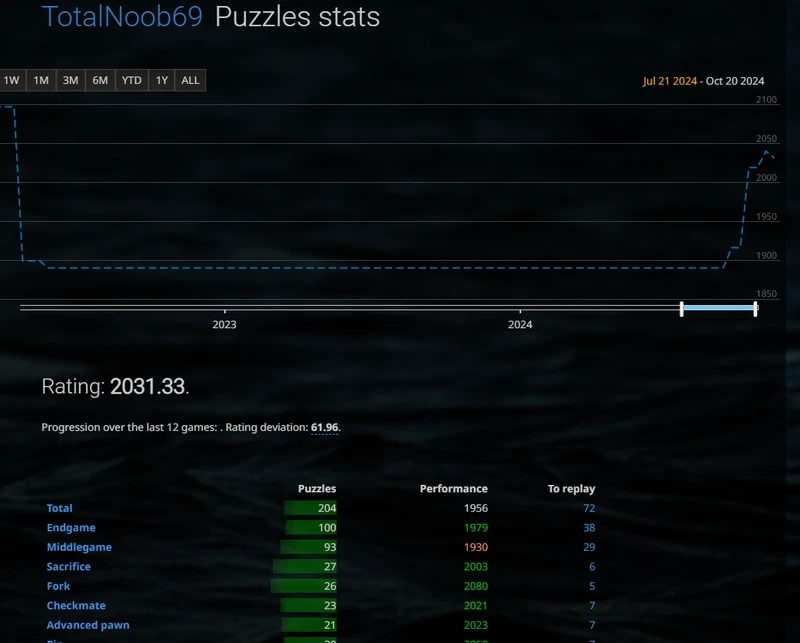
Yeah, go ahead and laugh! You thought I chose my username by mistake?
Anyway, some things to unpack here:
- the time slider will be affected by the other LiChess Tools feature: Profile slider, meaning you can zoom in and out easier. Follow the link to get more details about that.
- The Rating as well as the deviation are provided by the server on the last 12 puzzles. They are not affected by the time slider.
- The first row in the details table is always 'Total', giving you the average performance, the total number of puzzles you played in the selected interval and how many you failed. The rest are specific to a puzzle theme, with the same format.
- The first column represents the theme. Click on the name to play puzzles in that theme.
- The second column shows you the number of puzzles you've played in the theme, complete with a bar chart of how many you won. A bright green shows the puzzles you've won directly. The darker green gradient is coming from puzzles you've completed during replay. Mouse over the bar and you will see something like 12+4, which means 12 direct wins and 4 during replay.
- The performance is the rating for each theme, colored green if larger than the Total average and red if lower.
- Finally the last column is the number of puzzles you have failed and not replayed in each theme. Clicking on the number will take you to play those.
This is a much better way of visualizing your puzzle progress. The red/green colors will show you which themes you need to progress on. The replay function will help you complete the puzzles you've failed, but be warned: once completed you cannot play them again.
Notes:
- From v2.3.160 the headers of the Puzzle stats table can be clicked to allow for sorting on either puzzle count, performance or replay.
- Due to server limitations, the links to replaying puzzles do not lead you to playing the puzzles in the exact interval you've chosen, but instead round the number of days to one of these values: 1, 2, 3, 7, 10, 14, 21, 30, 60, 90. So let's say you move the slider to 2057 days into the past, it will actually serve you the puzzles in the last 90 days.
My personal recommendation is to look at the performance rating for each theme and then train the one with the lowest value. This will update your rating for that theme, so you can repeat the process with the category that becomes lowest next. Do this as part of your puzzle exercises, until you are satisfied with your overall balance. Only then start replaying the failed puzzles that now you've gathered enough of and you've played long enough ago so that you don't remember the solution.
Anyway, I am very proud of this new thing. I have not been doing puzzles, really, but now I am inspired to improve by this new page. Try it out and let me what you think!
You may also like
 TotalNoob69
An unexpected insight on d-pawn pushes/openings
TL;DR; Pushed d-pawns indirectly defend the second rank f square. TotalNoob69
Finding the sweet spot move!
... a new way of filtering candidate moves CM HGabor
How titled players lie to you
This post is a word of warning for the average club player. As the chess world is becoming increasin… TotalNoob69
The world didn't end
... yet GM NoelStuder
I won 200 rating points with a simple challenge
At the end of July, I set myself a challenge: 30 days, each day 6 games of 3+2 Blitz with full focus. GM Avetik_ChessMood